
A reliable YouTube video downloader can be handy when you want to watch a tutorial on a flight, save a lecture for a weak connection, or keep a copy of your own uploads. The problem is that many websites and apps promising a free download are packed with pop ups, fake buttons, and misleading offers. Some are simply unsafe to use.
This guide explains how a YouTube video downloader works, what to look for in a clean, ad light tool, and how to download videos step by step. It also covers 4K quality, PC and mobile use, common errors, and the official options that keep you on the right side of the rules. By the end, you will know how to make smarter, safer choices.
What Is a YouTube Video Downloader and How Does It Work?
A YouTube video downloader is a tool that lets you save a video from YouTube as a file on your device. Instead of streaming the video every time, you keep a copy that you can open without an internet connection. Most tools fall into three groups: online websites, desktop software, and mobile apps or browser extensions.
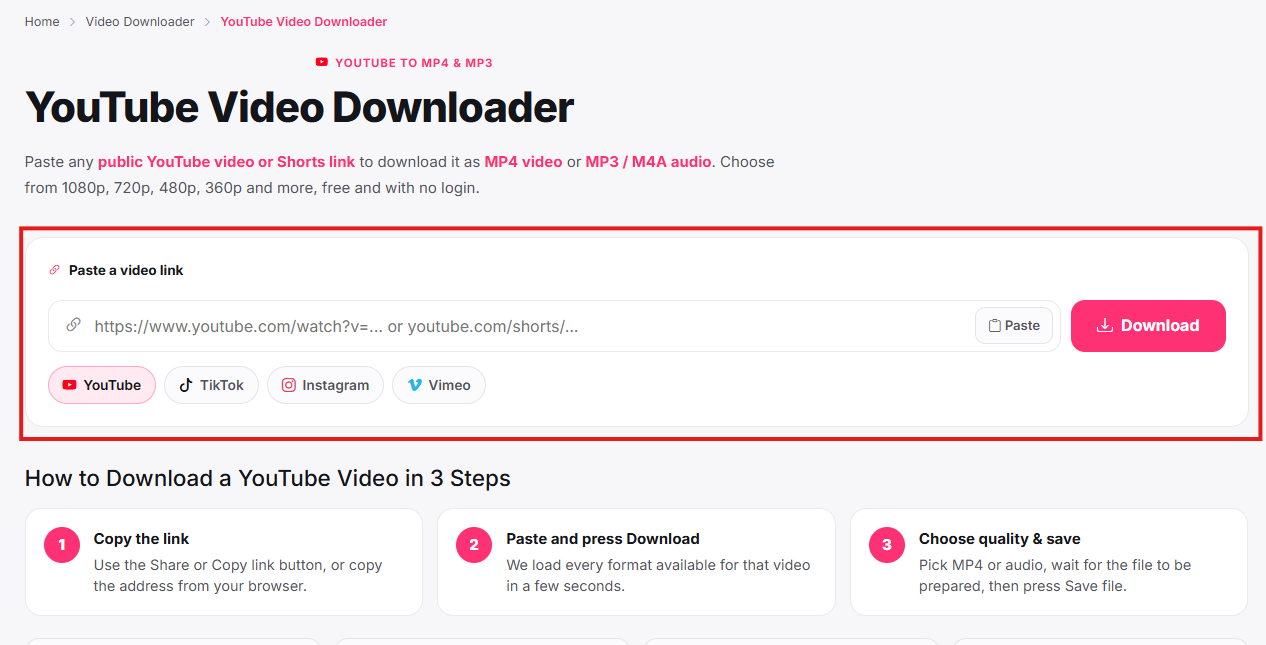
The process is usually similar across all of them. You copy the link of a video, paste it into the tool, and the tool reads the available formats and quality levels. You choose one, such as MP4 for video or MP3 for audio, and the file is saved to your device. Behind the scenes, the tool requests the media stream that your browser would normally play and packages it into a file.
An online YouTube video downloader runs in your browser, so you do not install anything. That is convenient, but it also means the site controls what you see on the page, including advertisements. Desktop software tends to give more control over resolution, batch downloads, and subtitles, while mobile options are built for quick saves on the go.
Quality varies widely. Some tools only offer 360p or 720p, while others support Full HD, 2K, and 4K when the original upload provides it. A tool cannot create detail that was never in the source video, so the maximum quality always depends on how the creator uploaded the file.
Why People Look for a Free YouTube Video Downloader With No Ads
People search for a free YouTube video downloader with no ads because the experience on many sites is frustrating. You paste a link, and suddenly the page is covered with flashing banners, download buttons that are not real, and pop ups that open new tabs. It is easy to click the wrong thing.
There are several practical reasons people want to download videos in the first place. Students save recorded lessons so they can study without burning mobile data. Travelers download content before a trip. Creators keep backups of their own videos, especially when the original files are lost. Teachers and trainers prepare presentations for rooms with unreliable internet. Families in areas with slow or expensive data plans may download once on a good connection and watch many times.
The "no ads" part matters for more than convenience. Aggressive advertising on downloader sites is one of the most common ways that unwanted software and scams reach users. A clean interface is usually a sign that the site cares about the reader, although it is never a guarantee of safety. Later in this guide, you will find a checklist for judging a tool before you trust it.
It is also worth being realistic. Running a download service costs money for servers and bandwidth, so a service that is completely free and completely ad free needs another way to pay its bills. That might be donations, an open source community, or optional paid upgrades. When you cannot see how a site earns money, be more careful, not less.
Is It Legal and Safe to Download YouTube Videos?
This is the most important question, and it deserves a straight answer. YouTube's Terms of Service generally do not allow downloading videos unless YouTube provides a download button or link for that content. Copyright law adds another layer: most videos belong to their creators, and copying or redistributing them without permission can be a violation in many countries.
That does not mean every download is a problem. There are clear situations where saving a video is acceptable or even encouraged:
- Videos you uploaded yourself, where you own the rights
- Content licensed under Creative Commons that allows reuse, following the license terms
- Public domain material
- Videos where the creator has given you clear permission
- Content offered through YouTube's own download feature for offline viewing
Personal, private use is treated differently from country to country. In some places it is tolerated or covered by limited exceptions, and in others it is not. Sharing, reposting, selling, or uploading downloaded videos to another platform is far riskier and often infringes copyright. If you are unsure, check the rules in your country or ask the creator directly. This article is general information and not legal advice.
Safety is a separate issue from legality. Even when your purpose is fine, a poorly built downloader can carry malware, trick you into installing browser extensions you do not want, or collect personal information. Treat every tool as something to verify, not something to trust automatically.
Key Features to Look for in an Online YouTube Video Downloader
Not all tools are equal, and a few features separate a decent option from a risky one. When you compare an online YouTube video downloader, use the following points as a guide.
A clean, readable interface. The page should show one clear input box and a clearly labeled download button. If the page is full of large green buttons that say "Download" in several places, that is a warning sign, because only one of them is usually real.
HTTPS and a clear privacy policy. The address should begin with https, and the site should explain what data it collects. A missing policy or contact page suggests the operator is not accountable to anyone.
Multiple formats and resolutions. A good tool lists MP4, WebM, and audio options such as MP3 or M4A, along with resolutions from 360p up to 4K where available. Clear labels help you avoid downloading the wrong file.
No forced installs. A browser based tool should work without asking you to install an extension, a "player," or a "download manager." Any tool that insists on an installation before a simple download deserves suspicion.
Reasonable speed and stability. Slow, repeatedly failing downloads often mean the service is overloaded or poorly maintained.
Transparent business model. Look for signs of how the service is funded, such as a premium plan, donations, or an open source project. Be careful with tools that promise everything with no explanation.
Additional useful features. Subtitle downloads, playlist support, and audio only extraction are helpful, but they are extras. Safety and clarity come first.
How to Download YouTube Videos Using a URL, Step by Step
Using a link is the most common way to save a video, and the steps are very similar across tools. Here is a simple, general process you can follow. Only use it for videos you have the right to download.
Step 1: Copy the video link. Open the video on YouTube. Click the address bar in your browser and copy the full link, or use the Share button beneath the video and choose Copy. On a phone, tap Share and then Copy link.
Step 2: Open a trusted downloader. Visit the tool you have checked using the safety points in this guide. Avoid clicking search ads that imitate well known names, because scammers often copy popular tool names to trick people.
Step 3: Paste the link. Click the input box, paste the URL, and press the button that starts the search, usually labeled Download, Start, or Convert.
Step 4: Choose a format and quality. The tool will show a list of options. Pick MP4 for a standard video or an audio format if you only need the sound. Choose a resolution that matches your device and your storage space.
Step 5: Save the file. Click the final download button next to your chosen option. Your browser will ask where to save the file or place it in your Downloads folder automatically.
Step 6: Check the file before opening. Look at the file extension. A video should end in .mp4 or .webm, not .exe, .apk, or .zip. If the file type looks wrong, delete it and do not open it.
Following these steps carefully, and pausing at any button that looks out of place, keeps the process quick and safe.
How to Use a YouTube Video Downloader 4K for Sharper Quality
Many viewers search for a YouTube video downloader 4K because they want the sharpest image on a large monitor or television. 4K, also called Ultra HD, has a resolution of 3840 by 2160 pixels, which is four times the pixel count of Full HD. It can look excellent, but there are several things to understand first.
The source must be 4K. A downloader can only save what the creator uploaded. If a video was uploaded in 1080p, no tool can honestly turn it into real 4K. Claims that promise to upgrade any video to 4K are misleading. Upscaling only stretches the image and does not add genuine detail.
File sizes are large. A short 4K clip can take hundreds of megabytes, and a long video can take several gigabytes. Check your free storage before you begin, and consider downloading on WiFi instead of mobile data.
Formats matter. High resolution streams on YouTube are often delivered as separate video and audio tracks. Good tools merge them into one file for you. Some simple online tools cannot do this, which is why they may cap quality at 720p or 1080p. Desktop software is often better for 4K because it can combine the tracks on your computer.
Your device must handle it. Older computers and phones may stutter while playing 4K files. If playback is choppy, try a 1440p or 1080p version instead. The difference is often small on a screen smaller than 27 inches.
Codecs affect compatibility. Some 4K files use VP9 or AV1, which certain older players cannot open. If a file will not play, try a modern player such as VLC, or choose an H.264 MP4 option when it is offered.
If you only need a video for a phone or tablet, 4K is usually unnecessary. Choosing 1080p saves space and time with very little visible loss on smaller screens.
Downloading YouTube Videos to Your PC, Phone, and Tablet
The steps change slightly depending on your device, so here is how to approach each one.
On a Windows PC or Mac. Your computer offers the most flexibility. You can use a browser based tool for quick saves or dedicated desktop software for higher resolutions, playlists, and subtitles. Save files to a dedicated folder so they are easy to find. Keep your operating system and antivirus software updated, and scan any installer before opening it. Only download software from the developer's official website or a recognized store, not from a random link.
On an Android phone. Browser tools work in Chrome or Firefox, and downloaded files appear in your Downloads folder or Files app. Be very careful with apps outside the Google Play Store. Installing an APK from an unknown source is one of the most common ways malware reaches Android devices. If a tool asks for permissions that do not match its purpose, such as access to your contacts or messages, decline and remove it.
On an iPhone or iPad. Apple restricts how files are saved, so many third party downloaders do not work well on iOS. Safari supports some direct downloads on newer versions, and saved files go to the Files app. In many cases, the simplest and safest choice on iOS is YouTube's own offline feature, which is covered in the next section.
On a Chromebook or Linux computer. Browser tools work the same way as on Windows and Mac. Linux users sometimes prefer open source command line tools, which are transparent and actively maintained by communities, though they require basic comfort with the terminal.
Wherever you download, keep an eye on storage. Videos take up more space than most people expect, and a full device can slow down or cause other apps to fail.
Official and Safe Alternatives to Third Party Downloaders
Before you use a third party tool, consider the options that YouTube itself provides. They are simple, they respect creators, and they carry no risk of malware.
YouTube Premium downloads. With a paid YouTube Premium subscription, you can download eligible videos inside the YouTube app on Android, iPhone, and iPad. The videos play offline within the app, and they are also ad free. Downloads expire if you do not reconnect to the internet periodically, and they cannot be moved out of the app as ordinary files. This is the cleanest way to get a no ads offline experience.
Offline features in the app. In some regions, YouTube offers limited offline saving on mobile, including for certain content types. Availability changes by country and by video, so check the Download button below the video in your app.
Downloading your own videos. If you uploaded the video, you can retrieve it through YouTube Studio. Sign in, open Content, choose the video, and use the options menu to download it. You can also request an export of your data through Google Takeout to back up everything you have uploaded.
Creative Commons content. YouTube allows creators to mark videos with a Creative Commons license. You can filter search results for these videos, then follow the license terms, which usually require attribution to the creator.
Ask the creator. For content you want to use in a project, presentation, or classroom, the simplest and most respectful step is to message the creator. Many are happy to share a file or grant permission.
Use saving features instead of downloads. If your goal is convenience, playlists and Watch Later let you return to videos quickly without saving any file at all.
These options may not fit every situation, but they are worth checking first because they are stable, legal, and free of hidden risks.
Common Problems and How to Fix Them
Even a good YouTube video downloader can fail sometimes. YouTube changes its systems often, and tools must keep up. Here are common issues and practical fixes.
The tool says the video cannot be found. Check that you copied the full link and that the video is public. Private, age restricted, members only, and region blocked videos usually cannot be processed. Try removing extra parts of the link after the video ID.
The download stops or never starts. This is often a network problem. Refresh the page, switch from mobile data to WiFi, or try again later. Disable any VPN briefly, as some services block VPN traffic.
There is no sound in the file. Some tools save the video and audio as separate streams. Choose a format labeled as video with audio, or use software that merges the tracks automatically.
The quality is lower than expected. The original may not offer a higher resolution, or the tool may cap free downloads at 720p. Check the maximum quality on the YouTube player settings menu first.
The file will not open. Try a different media player, such as VLC. If the file has a strange extension, do not open it. Delete it and scan your device.
Repeated pop ups or redirects. Close the tab, clear your browser cache, and do not click anything on the page. Consider using a different tool. A site that constantly redirects you is not worth the trouble.
The tool suddenly stopped working. Changes on YouTube can break downloaders for days or weeks. Try a different reputable tool, or check whether the developer has posted an update.
When something feels off, trust that feeling. A tool that behaves strangely is easier to replace than a device is to repair.
Tips to Avoid Malware, Fake Buttons, and Intrusive Ads
Because so many downloader sites depend on advertising, learning a few safety habits can protect you far better than any single tool. Use these tips every time.
Use an ad blocker and a modern browser. A well known ad blocker removes many fake buttons and malicious ads. Keep your browser updated, since updates include security fixes.
Look for the real download button. The genuine button usually appears after you choose a format, and it often shows the file size and type. Buttons that flash, move, or sit inside banner areas are typically advertisements.
Never install extras. Decline offers to install a browser extension, a media player, a VPN, or a system optimizer. A basic download should not require any of them.
Check the file type. Videos are MP4, WebM, MKV, or similar. Audio is MP3, M4A, or similar. Anything ending in EXE, MSI, APK, BAT, or JAR is not a video.
Do not enter personal details. A downloader has no reason to ask for your email, phone number, card details, or password. Never sign in with your Google account on a third party site.
Scan downloads. Use built in tools such as Windows Security, or a trusted antivirus program, to scan files before opening them.
Be skeptical of big promises. Phrases like "unlimited 8K downloads in one second" or "100 percent virus free" are marketing, not evidence. Honest tools describe their limits.
Check reputation. Search for independent reviews and community discussions before using a tool. Look for consistent, detailed feedback rather than a wall of perfect ratings.
Respect creators. If you enjoy a channel's work, watching on YouTube, subscribing, and sharing the original link supports the people behind it, and it keeps the platform healthy for everyone.
Small habits like these take only a few seconds and can prevent hours of trouble.
Frequently Asked Questions About a YouTube Video Downloader
How do I download YouTube videos?
The safest method is YouTube's own Download button, available in the mobile app for eligible videos with a Premium subscription. For your own uploads, use YouTube Studio to download the original file. If you choose a third party tool for content you have the right to save, copy the video link, paste it into the tool, select a format such as MP4, and download the file. Always check the file type and scan it before opening.
What is the best YouTube video downloader app?
There is no single best option for everyone. The right choice depends on your device, the quality you need, and how careful you want to be. For a simple, safe, and ad free experience, YouTube Premium is the most reliable. If you prefer other software, look for a tool with a clear privacy policy, no forced installs, regular updates, and honest descriptions of what it can and cannot do. Open source projects with an active community can also be a transparent choice for advanced users.
Where can I download YouTube videos online?
You can use YouTube itself for eligible offline downloads or use an online YouTube video downloader in your browser. Because many sites are filled with ads and unsafe redirects, choose carefully and avoid sites that ask you to install extras. Video libraries that offer Creative Commons or public domain content are also good places to find videos that are free to download and reuse under their stated terms.
How can I download YouTube videos to my PC?
On a Windows PC or Mac, you can use a browser based tool for quick downloads or desktop software for higher quality and playlists. Copy the video link, paste it into your chosen tool, pick the format and resolution, and save the file to a folder you can easily find. Keep your system updated, download software only from official sources, and scan installers before running them. For your own videos, YouTube Studio provides a direct download option.
How can I download a YouTube video using a URL?
Copy the video URL from your browser's address bar or the Share button, then paste it into the input field of a downloader. Select your preferred format and quality, then click the final download button. Make sure the link is complete and the video is public. If the tool cannot read the link, remove extra text after the video ID and try again. Only download content you own, have permission to save, or that carries a license allowing it.
Is a YouTube video downloader 4K really available?
Yes, some tools can save 4K files when the original video was uploaded in 4K. They cannot create true 4K from a lower quality upload. Expect larger file sizes and make sure your device can play the format smoothly.
Final Thoughts
A YouTube video downloader can be useful when you use it responsibly. Start with the official options, because they are safe, simple, and respectful of creators. If you decide to use a third party tool for content you have the right to save, choose a clean interface, avoid forced installs, and verify every file before you open it. Aim for the quality you actually need, whether that is 720p for a phone or 4K for a large display, and remember that no tool can improve a video beyond what was uploaded.
Above all, stay alert. The best defense against unsafe downloaders is a habit of asking simple questions: Who runs this tool, how does it make money, and does anything on this page look wrong? With that mindset, you can enjoy offline viewing without the headaches of pop ups, malware, or rule violations.